DIGITAL TRANSFORMATION PRO-TIPS | MAY 2026
EDITION
May 20th, 2026 – Curtis Chow
Digital Pro-Tip 1: Scheduling Meetings Directly Through Outlook Emails
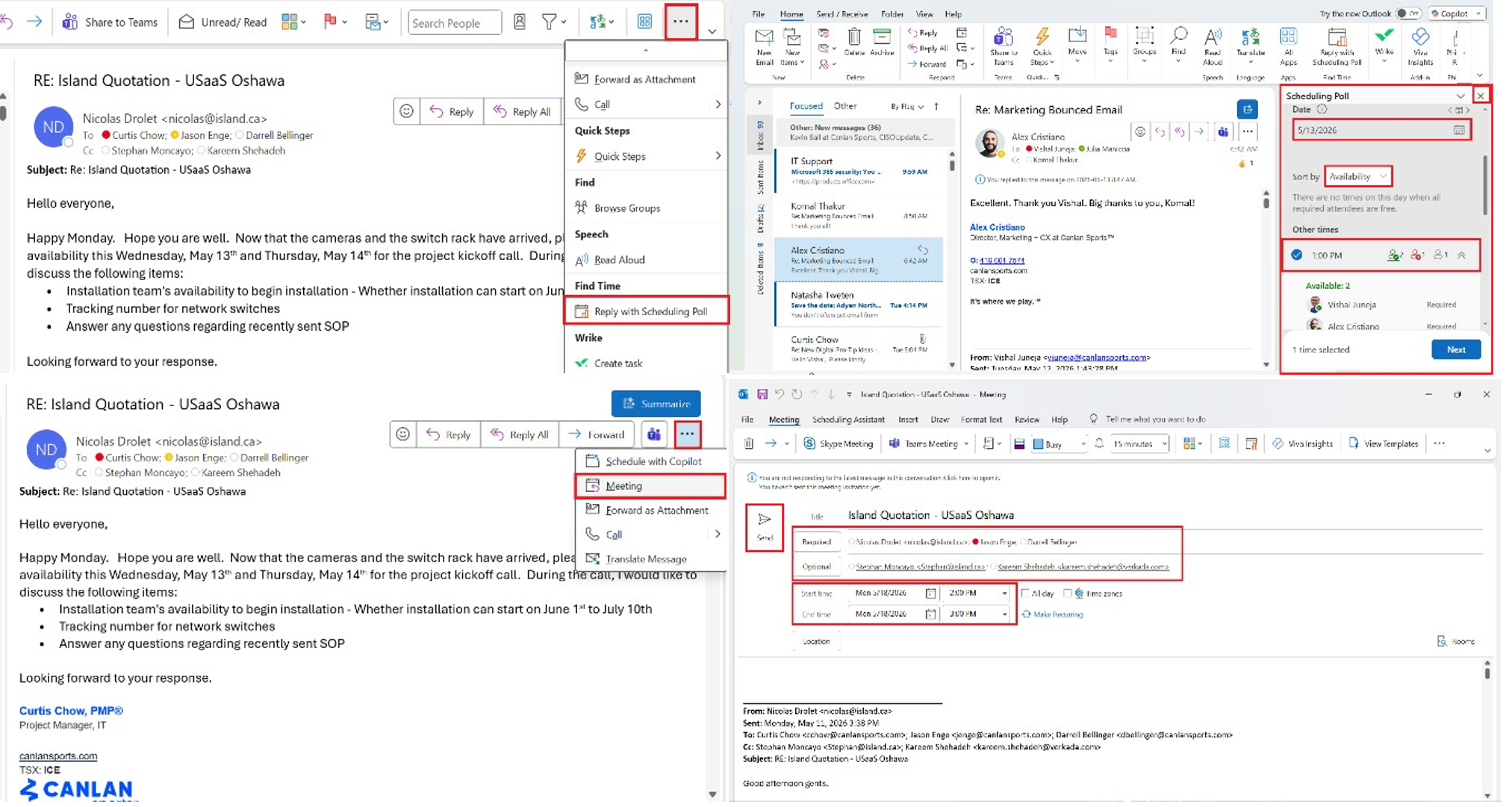
Step 1: On an email, navigate to the top right, select the three dots (…) button above the email. Depending on your Outlook layout, the “Scheduling Poll’ button may appear under the “Message” tab instead of the three dots (…) menu.
Step 2: Scroll down, select “Reply with Scheduling Poll” function, select date, review everyone’s availability.
Step 3: Return to the email.
Step 4: Select the three dots (…) icon above the email.
Step 5: Select the “Meeting” feature on the menu.
Step 6: Verify participants, date, time, hit “Send” button after all details are confirmed.
Digital Pro-Tip 2: Leveraging Copilot via Outlook to Draft Emails, Summarize Articles, and Draft Reports
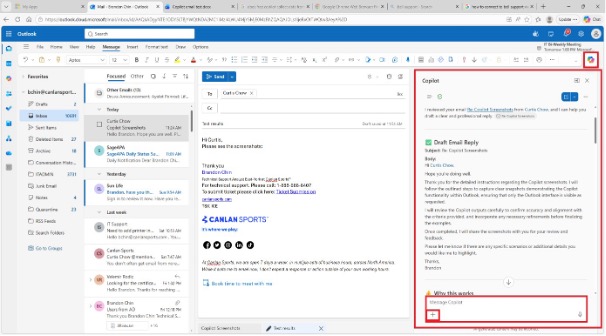
Step 1: On the email that you would like Copilot to assist you with, select the Copilot button on the top right of the Outlook dash bar
Step 2: Input a command prompt inside the prompt box specifying what you would like Copilot to do, specifying any additional context Copilot output must observe and any additional criteria that
Copilot output must meet
Step 3: Ensure that any and all information that may be considered sensitive and/or confidential is removed before hitting “Enter”.
Step 4: Review the output text generated by Copilot tab in response to your prompt and advise whether the information is accurate, aligned to your criteria, and ready to proceed. Step 5: If draft email output on Copilot tab is incorrect or inaccurate and needs additional correction, specify changes needed in prompt box.
Step 6: Ensure any and all information considered sensitive and/or confidential is removed from follow-up prompts before hitting “Enter”.
Step 7: Once email output on Copilot tab meets your criteria, select “Reply All” on email, copy and paste email response from Copilot tab to email, input sensitive and/or confidential information on email, hit “Enter”.
Step 8: Attach article that you would like Copilot to summarize, input “Review attached document and summarize” in prompt box, detailing the specific information that you want Copilot to extract for your review.
Step 9: Ensure that any and all information on document that may be considered confidential and/or sensitive is removed before hitting “Enter”.
Step 10: Input information that you would like Copilot to draft a report on, input “Review information and draft report” in prompt box, specifying any additional context that Copilot output must observe and any criteria that Copilot output must meet
Step 11: Ensure that any and all information on document that may be considered confidential and/or sensitive is removed before hitting “Send”.
Step 12: Once Copilot output meets your reporting criteria and additional criteria you may have, input “Download file” on prompt box, specifying file format.
Please reach out to me directly for queries, suggestions, and feedback. Thank you!
Curtis Chow Project Manager, IT
Canlan Ice Sports Corp. cchow@canlansports.com